
This page wll explain you how to synchronize Teams file with your laptop, thanks to the Cloud.
You must have OneDrive installed on your laptop.
Synchronize files
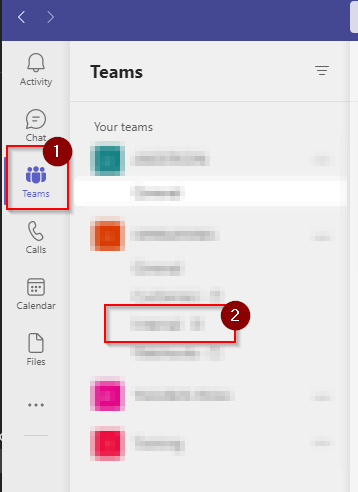
- Open Teams and select the Channel in which the folder/file you’d like to sync is.
- In the Files tab, click on Open in Sharepoint. A new page will opoen in your browser.


- Browse the folders to find the one you’d like to sync. Select it and click on Sync.
- If you want to sync a complete Teams or Channel, click on Sync from the Teams/Channel’s Homepage in your Internet Browser.
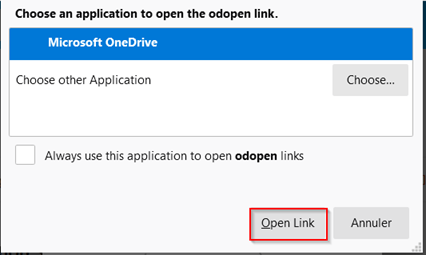
- If a pop-up appears, select Always use this app and click on Open link.
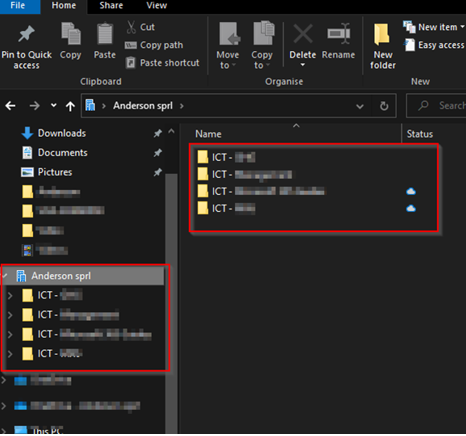
- The files are now sync to your laptop.
Make sure the tab in your Windows Explorer is named after the Teams tenant for which you are syncing.
For more information on the sync, One Drive and the icons, you can refer to Microsoft official documentation by clicking here