Teams allows you to organize calls and meeting with your colleagues and customers. We’ll check how to use this feature here.
- How to create a meeting in both Teams and Outlook
- How to use the Meeting feature
- How to share your screen
Teams allows you to organize calls and meeting with your colleagues and customers. We’ll check how to use this feature here.
Organize a meeting
You can organize a meeting either with Outlook or Teams
Organize a meeting with Outlook
- Open your Outlook Calendar
In the top left ribbon, you will see the New Teams meeting Icon. Click on it
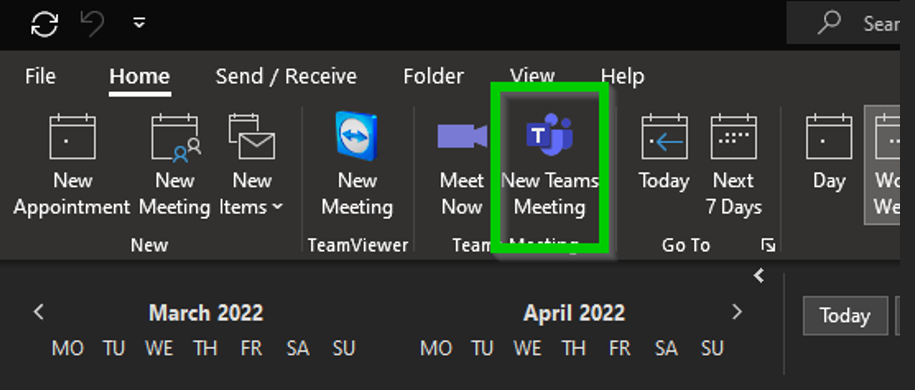
- It will open a new Meeting Window, as per a classic meeting. Set the date, the hour and the participants you’d like to invite to the meeting.
- Click on Send to create your meeting.
Join a Teams meeting with Outlook
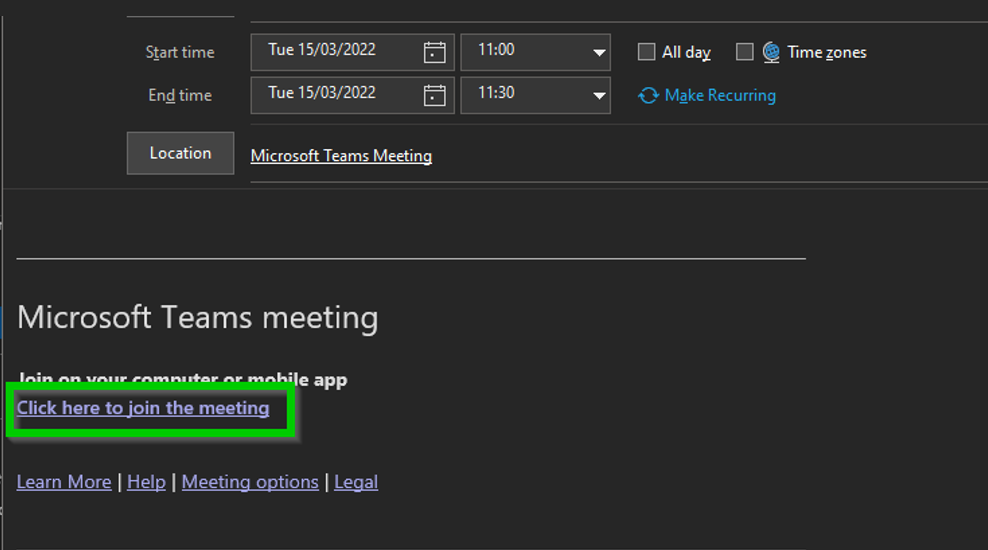
- Open a meeting by double-clicking on it in your Calendar
- Click on Click here to join the meeting to join the meeting.
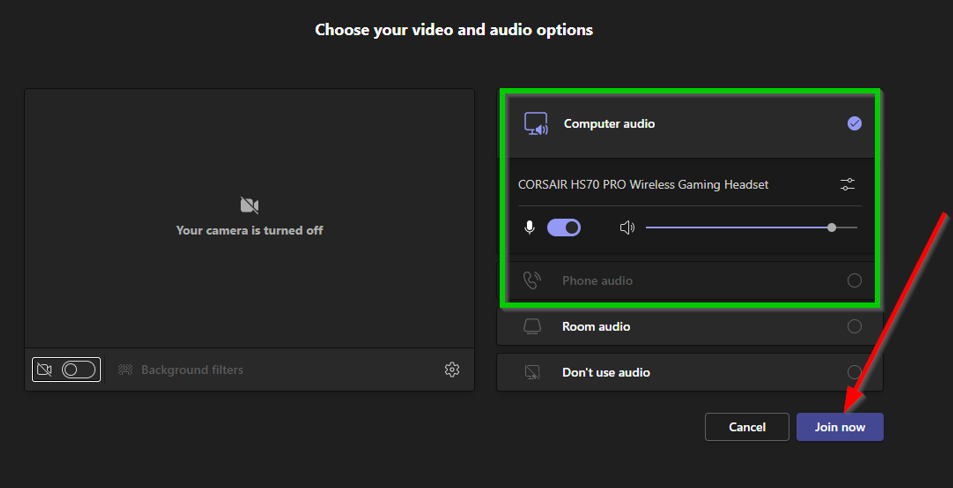
- A new window will appear
- Select the device you’d like to use for the audio and click on Join
Organize a meeting with Teams
- In your Teams application, click on the Calendar app and select New meeting
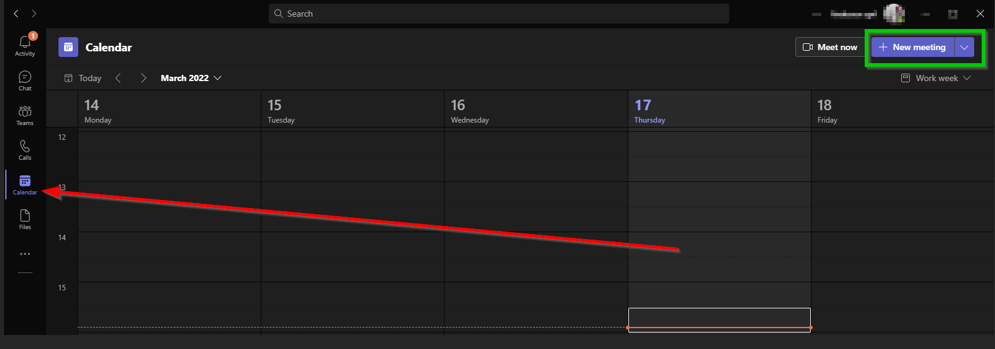
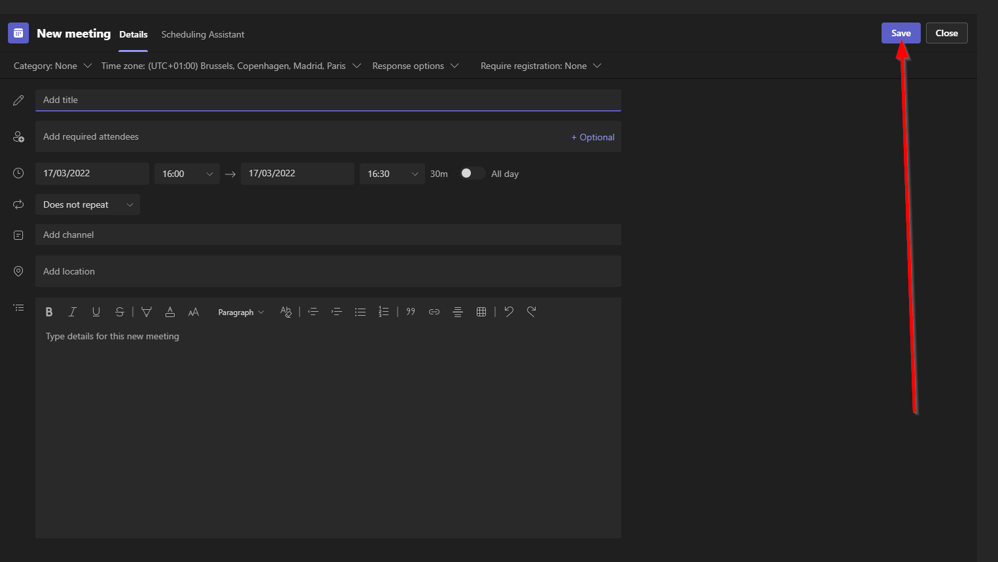
- A new window will open. Enter the details such as the date, hour, participants and comments in preparation for the meeting.
- Once the details are set, click on Save
Join a meeting in Teams
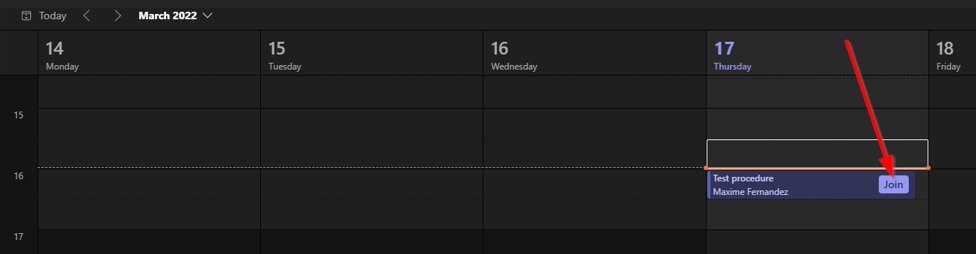
- To join a meeting in the Teams app, go to the Teams Calendar app.
- On the timeslot the meeting is set, click on Join
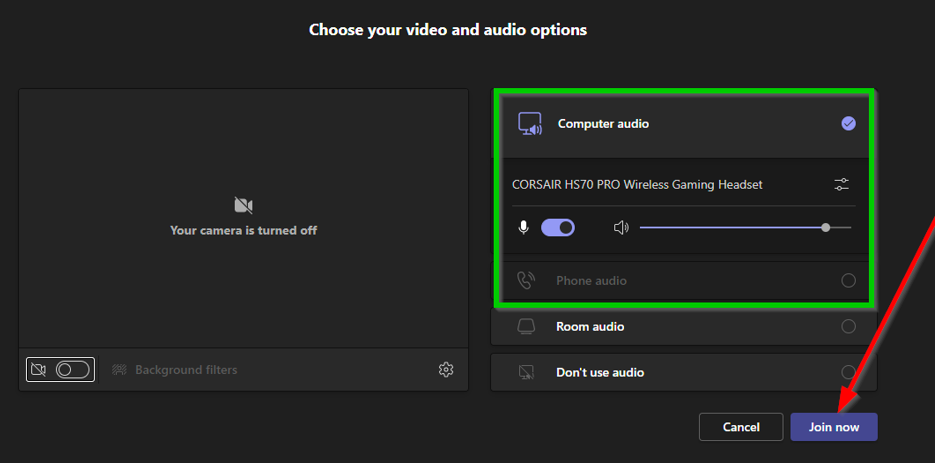
- A new window will appear
- Select the device you’d like to use for the audio and click on Join
How to share your screen
Teams allows to share your screen with other participants in a meeting.
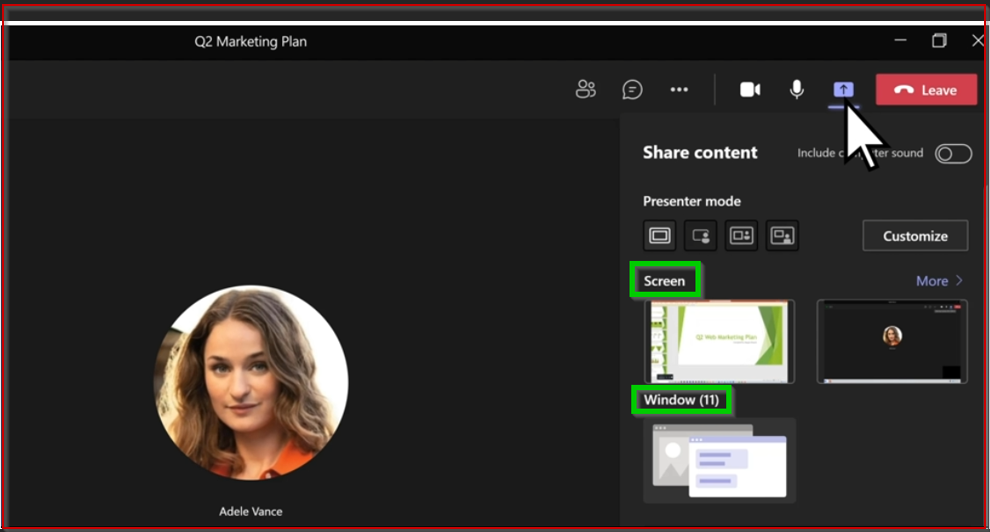
- During a call, click on the Share screen button
- Then, select if you want to share a complete screen (Screen 1, 2…) or only a specific window
- By scrolling, you’ll see that you can also directly share a powerpoint or a whiteboard
- A red band will surround the shared window or screen.