
This procedure will explain you how to download/upload files in Teams and how to modify a file from Teams.
How to upload or download a file or folder
Upload a file
-
Open Teams
-
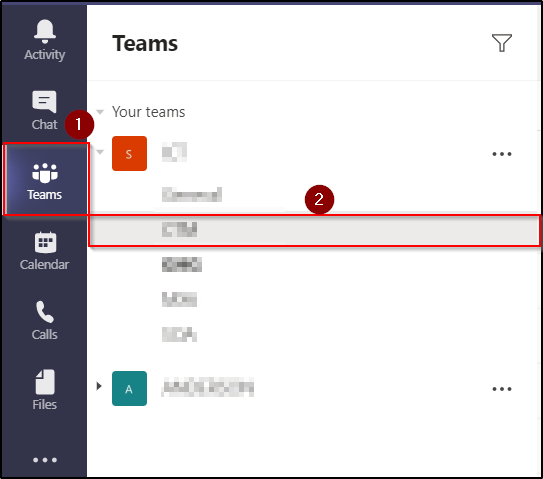
Select Teams on the left side
-
Click on a channel

- On the Ribbon, click on Files

- Click on Upload
- Choose Files or Folder
- Select the file or folder you want to upload
- Click on open
How to download a file
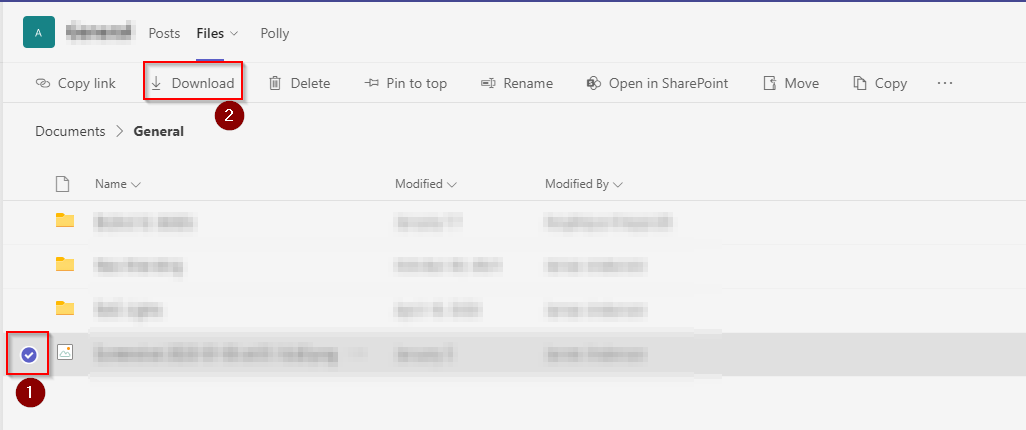
- Select your File(s)
- Click on Download
- Your file(s) or folder will be on your Download folder
Modify a file directly in Teams
-
Open Teams
-
Select Teams on the left side
-
Click on a channel
- In the Ribbon, click on Files
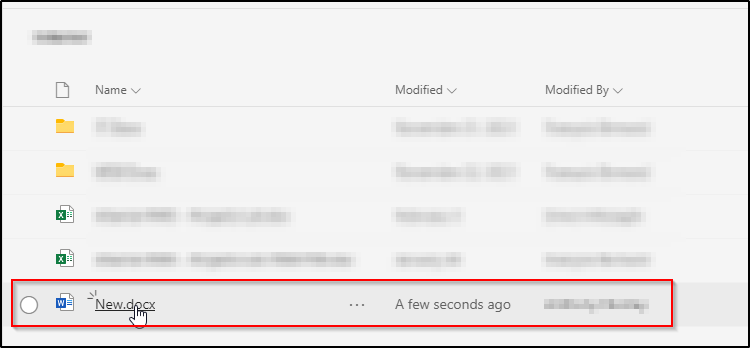
- Click on the file you’d like to open.

- You can modify your file like on Word
Open a file in O365 apps
-
Open Teams
-
Select Teams on the left side
-
Click on a channel
- In the Ribbon , click on Files
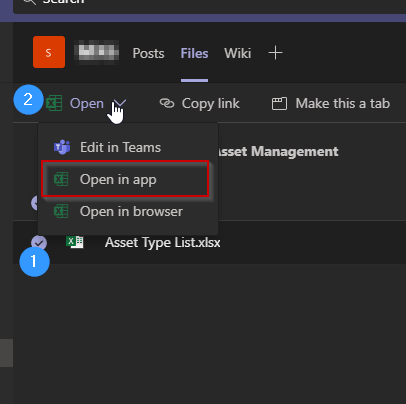
- Select your file by checking the box at its left
- Click on Open
- Click on Open in app

-
If you have already open the file inside Teams, you can click on Open in Desktop App
-
The file will then open in the Desktop app (Excel, Word…)
-
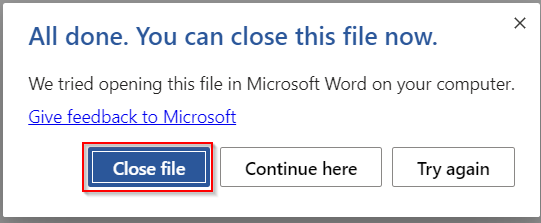
- In your Teams app, a window appears
-
Click on Close File
You can modify and save your file in the desktop app.
The modifications will be automatically change in the Teams file or folder, thanks to the Cloud.