
This procedure will explain you how to add a member or a guest. It will also explain which permission are granted depending on the granted accesses.
Difference between accesses.
| Permission | Owner | Member | Guest |
|---|---|---|---|
| Dowload/Upload | |||
| Edit files | |||
| Create channel | |||
| Access to Settings | |||
| Add a member | |||
| Add a Guest | |||
| Grant access |
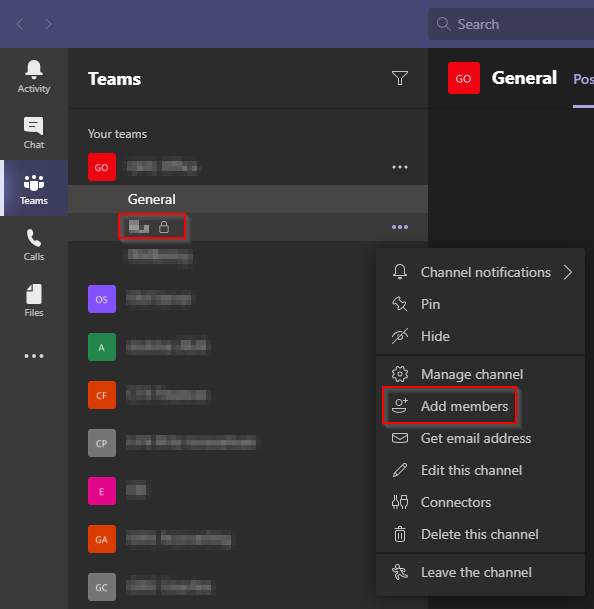
Add a new member in a Teams or a Channel.
-
Right click on the Channel you want to add the user to.
-
Click on Add members
-
Enter the name (for members) or the email address (for a guest) of the user
-
Click on Add
-
The user is now added! He might need to log off and log in to see the new Teams or Channel.
To add a person to a private channel, the person have to be added as a Member of the Teams before.
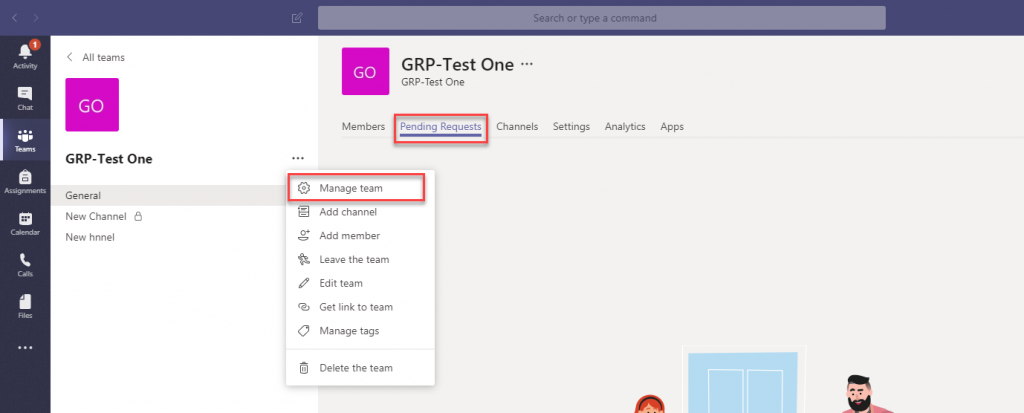
Approve or Deny an access request
To approve an invitation from a member
-
Right click on the Teams
-
A tab will show up as Pending Requests (not displayed if there are no requests)
-
Click on Approve or Deny based on your needs